

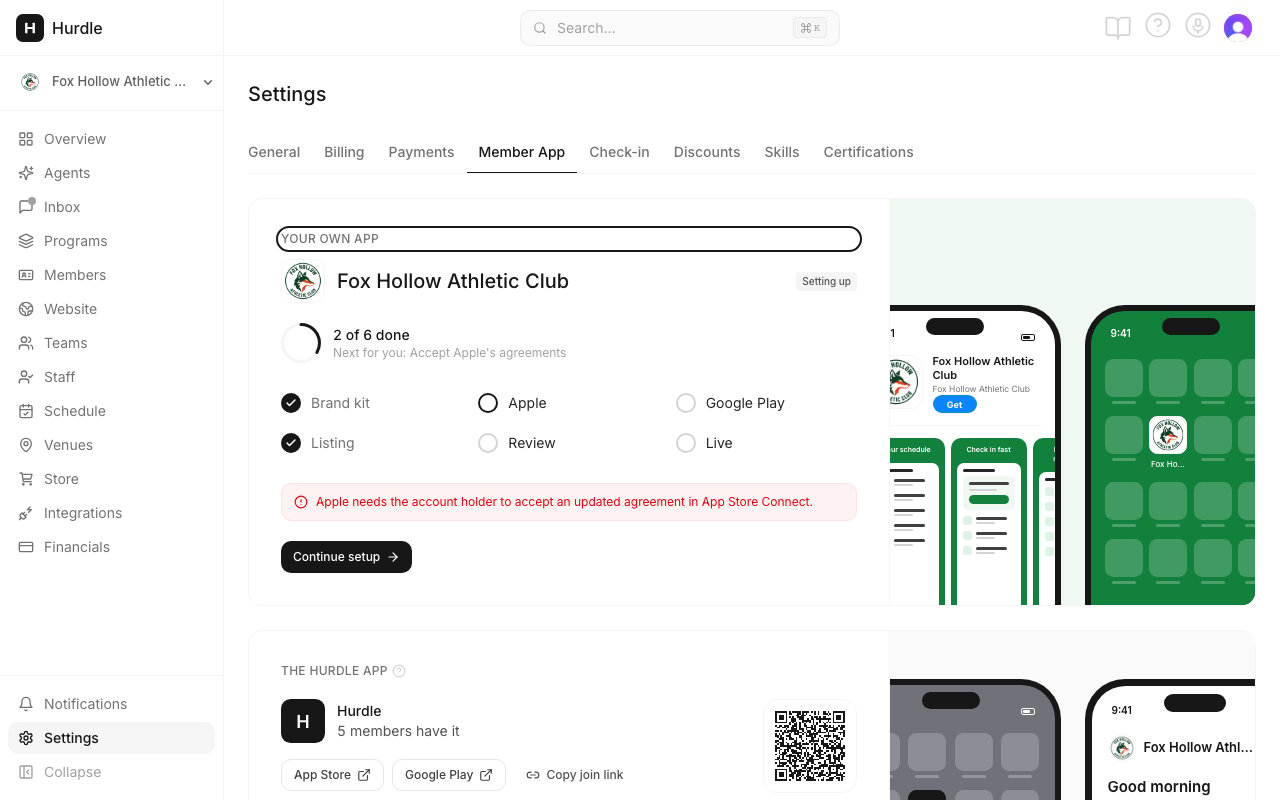
Setup starts from the Your own app card.
Apple
1
D-U-N-S number
Apple needs your organization’s D-U-N-S number, a free business ID. A new one can take up to 5 business days, so start here.
2
Apple Developer Program
Enroll as an Organization, not an Individual. Apple charges $99 a year. Click I’ve done this once Apple confirms.
3
Give Hurdle access
Create an App Store Connect key named Hurdle with App Manager access. Drop the downloaded .p8 file in and paste the Issuer ID.
4
Accept Apple's agreements
Your Account Holder signs in to App Store Connect, opens Business, then Agreements, and accepts every row that asks. Click Check again.
5
Push notification key
Make a key named Hurdle Push with Apple Push Notifications service turned on. Set Production and Team scoped, download the .p8 file and drop it in.
6
Create the app in App Store Connect
Use the values shown. Under Pricing and Availability, choose Free and all countries, then save.
7
App privacy answers
Answer Apple’s App Privacy questions with the answers shown. Copy all answers helps. Click Publish, then I’ve done this.
Google Play
1
Play Console developer account
Choose An organization. Google charges $25 once.
2
Create the app in Play Console
Use the values shown. Copy the Package name exactly. Google can’t change it later.
3
Invite Hurdle
Invite the email address shown, with the four permissions listed.
4
App content answers
Fill in App content with the answers shown. Click Show reviewer login for the sign-in Google’s reviewers need.
5
Upload the first build
Click Download build. In Play Console, open Testing, then Internal testing, then Create new release. Upload it, then click Save, Review release and Start rollout. After this, Hurdle publishes every update.
Common questions
Why do I need my own Apple and Google accounts?
Why do I need my own Apple and Google accounts?
So the stores list the app under your organization’s name, and it stays yours.
How long does setup take?
How long does setup take?
Most of the wait is Apple and Google checking your organization, which can take a few days. A new D-U-N-S number can take up to 5 business days. Start both early.
Can a nonprofit skip Apple's fee?
Can a nonprofit skip Apple's fee?
Nonprofits can ask Apple for a fee waiver.
Apple says An error has occurred
Apple says An error has occurred
Accept any waiting agreement (the Accept Apple’s agreements step) and try again. Apple won’t let you create an app while an agreement waits, even a free one.
I lost my .p8 file
I lost my .p8 file
Apple lets you download each key only once. Keep the file until it’s uploaded. If it’s gone, make a new key.
There's a certificate named for my team in my Apple account
There's a certificate named for my team in my Apple account
Hurdle makes your app’s distribution certificate with your key. Leave it in place. Every update is signed with it.
I used a personal Google account
I used a personal Google account
Personal accounts must run a 14-day test with 12 testers before they can publish. An organization account doesn’t.
I created the Play app with the wrong package name
I created the Play app with the wrong package name
Hurdle’s builds only upload to an app with the package name shown. It’s the same as your Apple bundle ID. Create a new app with the right one.
Google says my app is still a draft
Google says my app is still a draft
A release that was saved but never rolled out leaves the app a draft. A Start the rollout in Play Console step appears, and Hurdle emails your admins. In Play Console, open Testing, then Internal testing. If the release says Draft, click Edit release, Review release, then Start rollout to Internal testing. If Publishing overview lists changes, click Send changes for review. Then click Check again.
A step says access stopped working
A step says access stopped working
The step explains what’s wrong in one sentence. Fix it, then click Check again.