Sell extras such as jerseys, equipment or banquet tickets in the same checkout as a registration, and ask sizes or names when someone picks one.
Add-ons let families buy extras when they register: a team jersey, an equipment kit, a banquet ticket, a photo package. Everything is paid in one card payment with the registration, and you see the orders next to your roster.Go to: Programs → your program → Settings → Add-Ons
1
Open the program's Settings tab
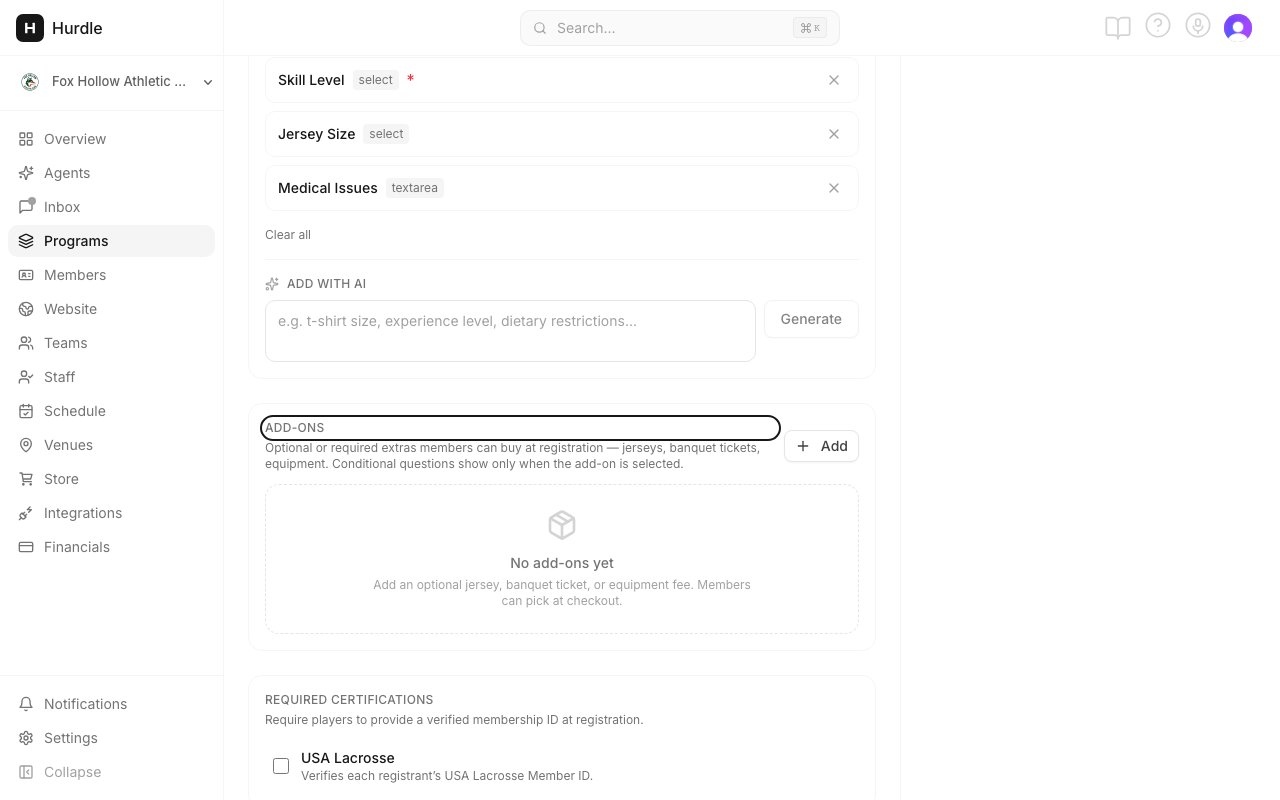
In the menu on the left, click Programs. Click the program, for example “Spring Soccer”. Click the Settings tab and scroll to Add-Ons.
Add-Ons sits on the program's Settings tab, after the custom fields.
2
Add the item
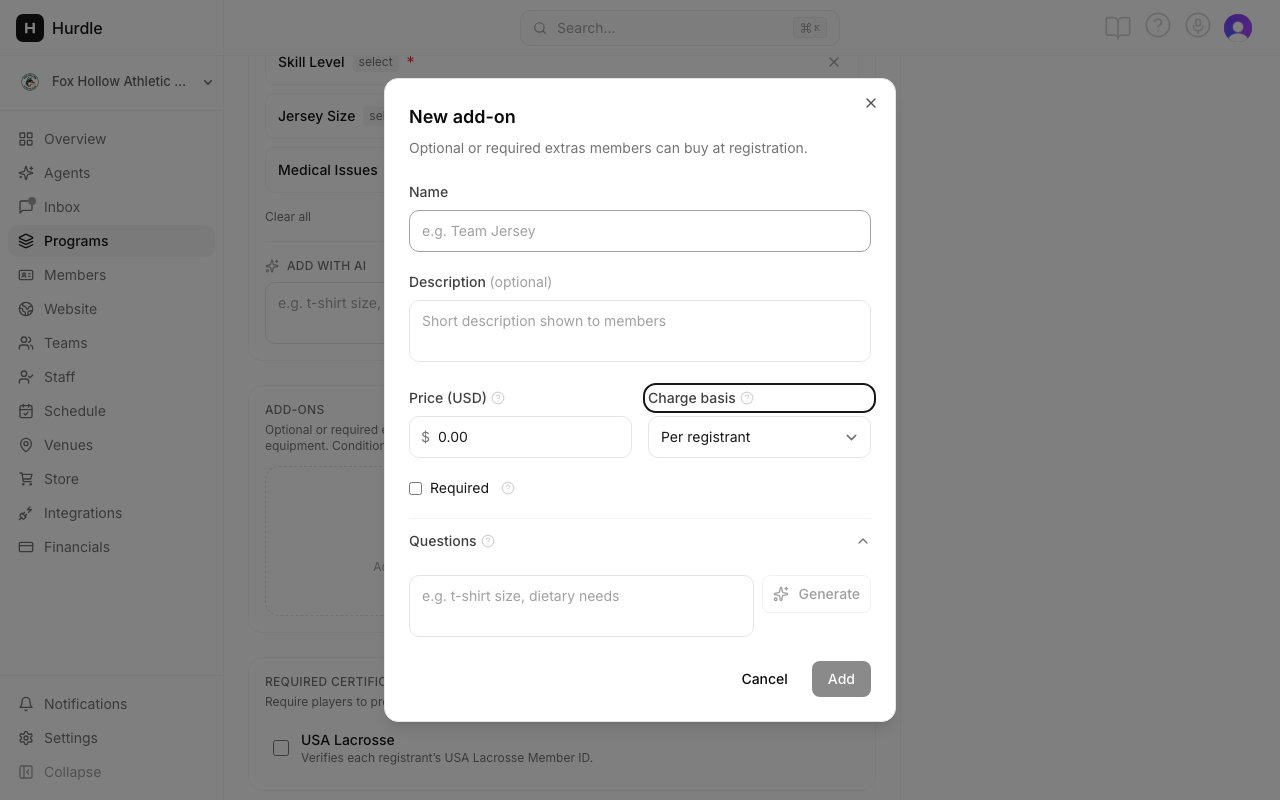
Click Add. In the New add-on window, fill in:
Name: what families see, like “Team Jersey”.
Description (optional): a short line under the name.
Price (USD): the price for one.
Charge basis: who pays and how often (see the table below).
Required: tick this if everyone must buy it. Families cannot remove a required add-on.
The New add-on window.
3
Ask for sizes or names (optional)
Under Questions, type what you need to know, like “size and name on back”. Click Generate. Hurdle writes the questions for you, with the right answer type and choices (for example YS, YM, YL, S, M, L, XL). Remove any you do not want with the X.These questions only appear when a family picks this add-on.
4
Save
Click Add. The add-on is live on your registration form right away.
Choose a charge basis
Charge basis
What the family pays
Good for
Per registrant
Once for each child they register
Jerseys, personal equipment
Per family
Once for the whole checkout
Banquet tickets, family photos
One-time per order
Once per checkout (works like per family)
Setup fees, one-off extras
Example: a family registers two children. A $45 per registrant jersey costs $90. A $75 per family banquet ticket costs $75.
Common questions
Is there an on or off switch for an add-on?
No. Every saved add-on shows on the registration form. To stop selling one, remove it with the trash icon. See Refund or remove an add-on.
Can I type the questions myself?
No. The Generate button is the only way to add questions. Type at least 10 characters first. To change a question, remove it and generate again with clearer words.
Do discount codes lower the add-on price?
No. A discount code only lowers the registration fee. Add-ons are always charged at full price. This means a 100% off code never gives away a free jersey. See Discount codes.
If I change the price, do past orders change?
No. The price is locked in when the family pays. Changing it later only affects new orders.
What if I make an add-on required after people registered?
People who already registered are not affected. Everyone who registers from now on must buy it.
Can the price be $0?
Yes. Use $0 for a required choice that costs nothing, like a meal preference for a banquet.
Can I bundle several items together?
Not as a bundle of separate add-ons. Add each item on its own, or make one add-on called “Full Kit” priced for the whole kit.
Can I limit how many I sell?
No. There is no stock limit. Watch the Add-ons column on the Registrants tab, and remove the add-on when you reach your number.
Can different age groups get different add-ons?
No. Every registrant on a program sees all its add-ons. For extras by age, use separate programs, each with its own add-ons.
I don't see Add-Ons on my membership
Membership programs do not have add-ons. The section shows on other program types.
What is Per camp day?
On a camp sold by the day, there is one more charge basis: Per camp day. It charges for each day a child is booked, like a lunch. Per camp day add-ons do not ask questions.
{"docsConfig":{"theme":"maple","$schema":"https://mintlify.com/docs.json","name":"Hurdle Docs","description":"Plain, step-by-step help for running your club, studio, school or camp on Hurdle: programs, registration, payments, scheduling, messages and more.","colors":{"primary":"#171717","light":"#FAFAFA","dark":"#171717"},"logo":{"light":"https://mintcdn.com/hurdle/OEdoWpwUhwUawPT7/logo/light.svg?fit=max\u0026auto=format\u0026n=OEdoWpwUhwUawPT7\u0026q=85\u0026s=fa99ce23704b2bad7d619b4361ee7db5","dark":"https://mintcdn.com/hurdle/OEdoWpwUhwUawPT7/logo/dark.svg?fit=max\u0026auto=format\u0026n=OEdoWpwUhwUawPT7\u0026q=85\u0026s=3629e6d2f2e174f213a90e7de199403f","href":"https://gohurdle.com"},"favicon":"https://mintcdn.com/hurdle/Gkb25SAJ1o10aFHl/favicon.svg?fit=max\u0026auto=format\u0026n=Gkb25SAJ1o10aFHl\u0026q=85\u0026s=c1bbe1f61ecf69703d214dbe79ee086b","appearance":{"default":"light"},"background":{"color":{"light":"#FFFFFF","dark":"#0A0A0A"}},"navbar":{"links":[{"href":"https://gohurdle.com","label":"Hurdle"}],"primary":{"type":"button","label":"Sign in","href":"https://gohurdle.com/sign-in"}},"footer":{"socials":{"website":"https://gohurdle.com"}},"search":{"prompt":"Search the docs, like \"refund\" or \"add a class\""},"seo":{"indexing":"navigable"},"fonts":{"family":"Inter"},"icons":{"library":"lucide"},"styling":{"eyebrows":"section","codeblocks":"system","latex":true},"contextual":{"options":["copy","chatgpt","claude"],"display":"header"},"metadata":{"timestamp":true},"navigation":{"pages":[]}},"deployment":{"deploymentMetadataValue":{"subdomain":"hurdle","hasAudioNarration":false,"actualSubdomain":"hurdle","customDomains":[],"gitSource":{"type":"github","owner":"arjshah","repo":"hurdle","deployBranch":"main","contentDirectory":"docs/help","isPrivate":true,"mountPath":"","label":"","_id":"6b021e5214422a8f9fe0b85d"},"entitlements":{"AI_CHAT":{"status":"ENABLED"},"WEB_MCP":{"status":"ENABLED"},"NARRATION":{"status":"ENABLED"}},"buildId":"6b0267c331002e841e6ec035","clientVersion":"0.0.4270","searchFilterCounts":[{"language":"default","tag":"Using Hurdle","count":233},{"language":"default","tag":"Programs","count":55},{"language":"default","tag":"Payments","count":27},{"language":"default","tag":"Website","count":24},{"language":"default","tag":"Members","count":18},{"language":"default","tag":"Messages","count":16},{"language":"default","tag":"Schedule","count":16},{"language":"default","tag":"Integrations","count":13},{"language":"default","tag":"AI agents","count":11},{"language":"default","tag":"Appointments","count":11}]},"assistantConfig":{"enableAskAiButton":false,"enableStarterQuestions":false,"enableContextualStarterQuestions":false,"enableAskAiSearchBar":true},"basePath":"/docs","hasChatPermissions":true,"hasWebMcpPermissions":true,"toggles":[{"name":"kill-isr","enabled":true,"variant":{"name":"disabled","enabled":false,"feature_enabled":true},"impressionData":false},{"name":"custom-rbac-roles","enabled":true,"variant":{"name":"disabled","enabled":false,"feature_enabled":true},"impressionData":false},{"name":"agent-mintlify-slack","enabled":true,"variant":{"name":"disabled","enabled":false,"feature_enabled":true},"impressionData":false},{"name":"agent-integrations-settings","enabled":true,"variant":{"name":"disabled","enabled":false,"feature_enabled":true},"impressionData":false},{"name":"rbac-expansion","enabled":true,"variant":{"name":"disabled","enabled":false,"feature_enabled":true},"impressionData":false},{"name":"automations-pr-grouping","enabled":true,"variant":{"name":"disabled","enabled":false,"feature_enabled":true},"impressionData":false},{"name":"custom-prefix","enabled":true,"variant":{"name":"disabled","enabled":false,"feature_enabled":true},"impressionData":false},{"name":"analytics-v7","enabled":true,"variant":{"name":"disabled","enabled":false,"feature_enabled":true},"impressionData":false},{"name":"user-flows-analytics","enabled":true,"variant":{"name":"disabled","enabled":false,"feature_enabled":true},"impressionData":false},{"name":"no-publish-flow","enabled":true,"variant":{"name":"disabled","enabled":false,"feature_enabled":true},"impressionData":false},{"name":"workos-onboarding","enabled":true,"variant":{"name":"disabled","enabled":false,"feature_enabled":true},"impressionData":false},{"name":"snapshot-serving-live","enabled":true,"variant":{"name":"disabled","enabled":false,"feature_enabled":true},"impressionData":false},{"name":"stripTemperatureMiddleware","enabled":true,"variant":{"name":"disabled","enabled":false,"feature_enabled":true},"impressionData":false},{"name":"support-platform-pylon-zendesk","enabled":true,"variant":{"name":"disabled","enabled":false,"feature_enabled":true},"impressionData":false},{"name":"snapshot-serving","enabled":true,"variant":{"name":"disabled","enabled":false,"feature_enabled":true},"impressionData":false},{"name":"instant-rollback","enabled":true,"variant":{"name":"disabled","enabled":false,"feature_enabled":true},"impressionData":false},{"name":"granular-notifications-server","enabled":true,"variant":{"name":"disabled","enabled":false,"feature_enabled":true},"impressionData":false},{"name":"granular-notifications","enabled":true,"variant":{"name":"disabled","enabled":false,"feature_enabled":true},"impressionData":false},{"name":"automations-fable","enabled":true,"variant":{"name":"disabled","enabled":false,"feature_enabled":true},"impressionData":false},{"name":"fixed-ai-action-pricing","enabled":true,"variant":{"name":"disabled","enabled":false,"feature_enabled":true},"impressionData":false},{"name":"site-roles","enabled":true,"variant":{"name":"disabled","enabled":false,"feature_enabled":true},"impressionData":false},{"name":"automation-resolve-merge-conflict","enabled":true,"variant":{"name":"disabled","enabled":false,"feature_enabled":true},"impressionData":false},{"name":"scoped-publishing","enabled":true,"variant":{"name":"disabled","enabled":false,"feature_enabled":true},"impressionData":false},{"name":"mintql","enabled":true,"variant":{"name":"disabled","enabled":false,"feature_enabled":true},"impressionData":false},{"name":"page-level-analytics","enabled":true,"variant":{"name":"disabled","enabled":false,"feature_enabled":true},"impressionData":false},{"name":"editor-version-history-v2","enabled":true,"variant":{"name":"disabled","enabled":false,"feature_enabled":true},"impressionData":false},{"name":"billing-page-v2","enabled":true,"variant":{"name":"disabled","enabled":false,"feature_enabled":true},"impressionData":false},{"name":"full-page-search","enabled":true,"variant":{"name":"disabled","enabled":false,"feature_enabled":true},"impressionData":false},{"name":"workspace-projects","enabled":true,"variant":{"name":"disabled","enabled":false,"feature_enabled":true},"impressionData":false},{"name":"assistant-v5","enabled":true,"variant":{"name":"disabled","enabled":false,"feature_enabled":true},"impressionData":false},{"name":"fork-pr-previews","enabled":true,"variant":{"name":"disabled","enabled":false,"feature_enabled":true},"impressionData":false},{"name":"revalidation-jwt","enabled":true,"variant":{"name":"disabled","enabled":false,"feature_enabled":true},"impressionData":false},{"name":"workos-sso-scim","enabled":true,"variant":{"name":"disabled","enabled":false,"feature_enabled":true},"impressionData":false},{"name":"hobby-abuse-scan","enabled":true,"variant":{"name":"disabled","enabled":false,"feature_enabled":true},"impressionData":false},{"name":"dashboard-inbox","enabled":true,"variant":{"name":"disabled","enabled":false,"feature_enabled":true},"impressionData":false},{"name":"workos-signup","enabled":true,"variant":{"name":"disabled","enabled":false,"feature_enabled":true},"impressionData":false},{"name":"turbopuffer-dual-write","enabled":true,"variant":{"name":"disabled","enabled":false,"feature_enabled":true},"impressionData":false},{"name":"workos-enabled","enabled":true,"variant":{"name":"disabled","enabled":false,"feature_enabled":true},"impressionData":false},{"name":"approve-review-flow","enabled":true,"variant":{"name":"disabled","enabled":false,"feature_enabled":true},"impressionData":false},{"name":"editor-metadata","enabled":true,"variant":{"name":"disabled","enabled":false,"feature_enabled":true},"impressionData":false},{"name":"sso-setup-deadline-banner","enabled":true,"variant":{"name":"disabled","enabled":false,"feature_enabled":true},"impressionData":false},{"name":"turbopuffer-serve","enabled":true,"variant":{"name":"disabled","enabled":false,"feature_enabled":true},"impressionData":false},{"name":"live-agents","enabled":true,"variant":{"name":"disabled","enabled":false,"feature_enabled":true},"impressionData":false},{"name":"starter-pricing","enabled":true,"variant":{"name":"control","enabled":true,"payload":{"type":"string","value":"control"},"feature_enabled":true},"impressionData":false},{"name":"llms-txt-v2","enabled":true,"variant":{"name":"disabled","enabled":false,"feature_enabled":true},"impressionData":false},{"name":"wildcard-email-auth","enabled":true,"variant":{"name":"disabled","enabled":false,"feature_enabled":true},"impressionData":false}],"googleFontsInlined":false},"customCss":[{"filePath":"style.css","content":":root{--hd-ink: #171717;--hd-body: #404040;--hd-muted: #737373;--hd-faint: #a3a3a3;--hd-line: #f5f5f5;--hd-line-strong: #e5e5e5;--hd-fill: #fafafa;--hd-fill-hover: #f5f5f5}:root.dark{--hd-ink: #fafafa;--hd-body: #d4d4d4;--hd-muted: #a3a3a3;--hd-faint: #737373;--hd-line: #1f1f1f;--hd-line-strong: #2a2a2a;--hd-fill: #141414;--hd-fill-hover: #1a1a1a}#content-area *,[data-layout-item=\"topbar\"],[data-layout-item=\"sidebar\"],.card{box-shadow:none!important}[data-layout-item=\"topbar\"]{border-bottom:1px solid var(--hd-line)!important;backdrop-filter:none!important}[data-layout-item=\"sidebar\"]{border-color:var(--hd-line)!important}#sidebar-content a,#sidebar-content button{font-size:0.8125rem}#sidebar-content li[data-active]>a,#sidebar-content li[data-active]{color:var(--hd-ink)!important;font-weight:500}.sidebar-group-header,#sidebar-content h5{font-size:0.75rem!important;font-weight:500!important;letter-spacing:0.02em;color:var(--hd-faint)!important;text-transform:uppercase}[data-layout-item=\"search-entry\"]{border:1px solid var(--hd-line-strong)!important;border-radius:8px!important;background:var(--hd-fill)!important}#header,[data-layout-item=\"page-header\"]{margin-bottom:1.75rem}#page-title{font-size:1.75rem!important;line-height:2.25rem!important;font-weight:600!important;letter-spacing:-0.02em;color:var(--hd-ink)!important}.eyebrow,[data-layout-item=\"page-header\"] .eyebrow{font-size:0.75rem!important;font-weight:500!important;letter-spacing:0.02em;text-transform:uppercase;color:var(--hd-faint)!important}[data-layout-item=\"page-header\"] p,#header p{font-size:1rem;line-height:1.6rem;color:var(--hd-muted)!important}#content-area{color:var(--hd-body)}#content-area h2:not([data-component-part]){font-size:1.25rem!important;line-height:1.75rem!important;font-weight:600!important;letter-spacing:-0.01em;color:var(--hd-ink)!important;margin-top:2.5rem!important}#content-area h3:not([data-component-part]){font-size:1rem!important;font-weight:600!important;color:var(--hd-ink)!important}#content-area strong{color:var(--hd-ink);font-weight:600}#content-area a:not(.card):not([data-component-part]){color:var(--hd-ink);text-decoration:underline;text-decoration-color:var(--hd-line-strong);text-underline-offset:3px;border-bottom:0!important}#content-area a:not(.card):not([data-component-part]):hover{text-decoration-color:var(--hd-ink)}#content-area code:not(pre code){font-size:0.85em;padding:0.1em 0.35em;border-radius:4px;border:1px solid var(--hd-line-strong);background:var(--hd-fill);color:var(--hd-ink)}#content-area hr{border-color:var(--hd-line)}.card{border:1px solid var(--hd-line-strong)!important;border-radius:12px!important;background:transparent!important;transition:border-color 150ms ease, background-color 150ms ease}.card:hover{border-color:var(--hd-faint)!important;background:var(--hd-fill)!important}.card [data-component-part=\"card-content-container\"]{display:flex;align-items:flex-start;gap:12px;padding:16px 18px!important}[data-component-part=\"card-icon\"]{flex:none;width:16px!important;height:16px!important;margin-top:2px;color:var(--hd-ink)!important;fill:none!important}[data-component-part=\"card-icon\"]>svg{width:16px!important;height:16px!important}[data-component-part=\"card-title\"]{margin-top:0!important;font-size:0.875rem!important;line-height:1.25rem!important;font-weight:600!important;color:var(--hd-ink)!important}[data-component-part=\"card-content\"]{margin-top:2px!important;font-size:0.8125rem!important;line-height:1.25rem!important;color:var(--hd-muted)!important}[data-component-part=\"step-indicator\"]{width:1.5rem!important;height:1.5rem!important;margin-left:2px;background:var(--hd-ink)!important;color:#fff!important;font-weight:500!important}:root.dark [data-component-part=\"step-indicator\"]{color:#0a0a0a!important}[data-component-part=\"step-line\"]{background:var(--hd-line-strong)!important}[data-component-part=\"step-title\"]{font-weight:600!important;color:var(--hd-ink)!important}#content-area img{border-radius:10px}.frame,[data-name=\"frame\"],#content-area figure{border:1px solid var(--hd-line-strong)!important;border-radius:12px!important;background:var(--hd-fill)!important;padding:0!important;overflow:hidden}.frame img,[data-name=\"frame\"] img,#content-area figure img{border-radius:0!important;margin:0!important}[data-component-part=\"frame-caption\"],#content-area figcaption{font-size:0.8125rem;color:var(--hd-muted)}.callout{border-width:1px!important;border-radius:10px!important;font-size:0.875rem}#content-area table{font-size:0.875rem}#content-area th{font-size:0.75rem;font-weight:500;letter-spacing:0.02em;text-transform:uppercase;color:var(--hd-muted);border-bottom:1px solid var(--hd-line-strong)!important}#content-area td{border-color:var(--hd-line)!important}toc-item,#table-of-contents a{font-size:0.8125rem}toc-item[data-active-deepest] a,#table-of-contents a[data-active]{color:var(--hd-ink)!important;font-weight:500}[data-layout-item=\"pagination\"] a{border:1px solid var(--hd-line-strong)!important;border-radius:10px!important;box-shadow:none!important}[data-layout-item=\"footer\"]{border-top:1px solid var(--hd-line)}#content-area [data-layout-item=\"page-header\"],#content-area .\\@container\\/page-header{margin-bottom:0!important}#content-area #content.mdx-content{margin-top:1.5rem!important}"}]}
{"page":{"pagePath":"programs/add-ons","slug":"/programs/add-ons","pageMetadata":{"title":"Sell add-ons like jerseys and banquet tickets","sidebarTitle":"Add-ons","description":"Sell extras such as jerseys, equipment or banquet tickets in the same checkout as a registration, and ask sizes or names when someone picks one.","type":"task","aiTopic":"program-addons","keywords":["add ons","add-ons","addons","sell add-ons","jersey","uniform","t-shirt","equipment","banquet ticket","photo package","extras","charge basis","per registrant","per family","jersey size","name on back"],"covers":["app/(dashboard)/dashboard/programs/[id]/_components/program-addons-section.tsx","app/(dashboard)/dashboard/programs/[id]/page.tsx","src/lib/services/program-addons/**"],"screenshots":[{"id":"add-ons-section","url":"/dashboard/programs","steps":[{"click":"Spring Soccer"},{"click":"Settings"},{"waitFor":"Add-Ons"}],"highlight":"Add-Ons","alt":"The Settings tab of Spring Soccer with the Add-Ons section outlined"},{"id":"add-ons-new-dialog","url":"/dashboard/programs","steps":[{"click":"Spring Soccer"},{"click":"Settings"},{"waitFor":"Add-Ons"},{"click":"Add"},{"waitFor":"New add-on"}],"highlight":"Charge basis","alt":"The New add-on window with Name, Price, Charge basis, Required and Questions"}],"href":"/programs/add-ons"},"description":{"compiledSource":"\"use strict\";\nconst {jsx: _jsx} = arguments[0];\nconst {useMDXComponents: _provideComponents} = arguments[0];\nfunction _createMdxContent(props) {\n const _components = {\n p: \"p\",\n ..._provideComponents(),\n ...props.components\n };\n return _jsx(_components.p, {\n children: \"Sell extras such as jerseys, equipment or banquet tickets in the same checkout as a registration, and ask sizes or names when someone picks one.\"\n });\n}\nfunction MDXContent(props = {}) {\n const {wrapper: MDXLayout} = {\n ..._provideComponents(),\n ...props.components\n };\n return MDXLayout ? _jsx(MDXLayout, {\n ...props,\n children: _jsx(_createMdxContent, {\n ...props\n })\n }) : _createMdxContent(props);\n}\nreturn {\n default: MDXContent\n};\n","frontmatter":{},"scope":{}},"pageType":"default","mdx":{"mdxSource":{"compiledSource":"\"use strict\";const{Fragment:_Fragment,jsx:_jsx,jsxs:_jsxs}=arguments[0];const{useMDXComponents:_provideComponents}=arguments[0];function _createMdxContent(props){const _components={a:`a`,li:`li`,p:`p`,strong:`strong`,tbody:`tbody`,td:`td`,th:`th`,thead:`thead`,tr:`tr`,ul:`ul`,..._provideComponents(),...props.components},{Accordion,AccordionGroup,Frame,Heading,OptimizedImage,Step,Steps,Table}=_components;if(!Accordion)_missingMdxReference(`Accordion`,true);if(!AccordionGroup)_missingMdxReference(`AccordionGroup`,true);if(!Frame)_missingMdxReference(`Frame`,true);if(!Heading)_missingMdxReference(`Heading`,true);if(!OptimizedImage)_missingMdxReference(`OptimizedImage`,true);if(!Step)_missingMdxReference(`Step`,true);if(!Steps)_missingMdxReference(`Steps`,true);if(!Table)_missingMdxReference(`Table`,true);return _jsxs(_Fragment,{children:[_jsx(_components.p,{children:`Add-ons let families buy extras when they register: a team jersey, an equipment kit, a banquet ticket, a photo package. Everything is paid in one card payment with the registration, and you see the orders next to your roster.`}),`\n`,_jsxs(_components.p,{children:[_jsx(_components.strong,{children:`Go to:`}),` Programs → your program → Settings → Add-Ons`]}),`\n`,_jsxs(Steps,{children:[_jsxs(Step,{title:`Open the program's Settings tab`,children:[_jsxs(_components.p,{children:[`In the menu on the left, click `,_jsx(_components.strong,{children:`Programs`}),`. Click the program, for example “Spring Soccer”. Click the `,_jsx(_components.strong,{children:`Settings`}),` tab and scroll to `,_jsx(_components.strong,{children:`Add-Ons`}),`.`]}),_jsx(Frame,{caption:`Add-Ons sits on the program's Settings tab, after the custom fields.`,children:_jsx(OptimizedImage,{src:`https://mintcdn.com/hurdle/Gkb25SAJ1o10aFHl/images/screenshots/add-ons-section.png?fit=max\u0026auto=format\u0026n=Gkb25SAJ1o10aFHl\u0026q=85\u0026s=312f84aa8d2a45e36b56874b5f80d699`,alt:`The Settings tab of Spring Soccer with the Add-Ons section outlined`,\"data-og-width\":`1280`,width:`1280`,\"data-og-height\":`800`,height:`800`,\"data-path\":`images/screenshots/add-ons-section.png`,\"data-optimize\":`true`,\"data-opv\":`3`,srcset:`https://mintcdn.com/hurdle/Gkb25SAJ1o10aFHl/images/screenshots/add-ons-section.png?w=280\u0026fit=max\u0026auto=format\u0026n=Gkb25SAJ1o10aFHl\u0026q=85\u0026s=1d831cc5ee2c7a91d3af05c00b348b57 280w, https://mintcdn.com/hurdle/Gkb25SAJ1o10aFHl/images/screenshots/add-ons-section.png?w=560\u0026fit=max\u0026auto=format\u0026n=Gkb25SAJ1o10aFHl\u0026q=85\u0026s=e0cceaac39408d9a285f6ea8216e01c8 560w, https://mintcdn.com/hurdle/Gkb25SAJ1o10aFHl/images/screenshots/add-ons-section.png?w=840\u0026fit=max\u0026auto=format\u0026n=Gkb25SAJ1o10aFHl\u0026q=85\u0026s=1aa8d5a2a6e54460f629e8a71067ef0c 840w, https://mintcdn.com/hurdle/Gkb25SAJ1o10aFHl/images/screenshots/add-ons-section.png?w=1100\u0026fit=max\u0026auto=format\u0026n=Gkb25SAJ1o10aFHl\u0026q=85\u0026s=0f155080408e6dfa3cbafbc77e7eaa48 1100w, https://mintcdn.com/hurdle/Gkb25SAJ1o10aFHl/images/screenshots/add-ons-section.png?w=1650\u0026fit=max\u0026auto=format\u0026n=Gkb25SAJ1o10aFHl\u0026q=85\u0026s=37762d12490edd752a51338e7efd110d 1650w, https://mintcdn.com/hurdle/Gkb25SAJ1o10aFHl/images/screenshots/add-ons-section.png?w=2500\u0026fit=max\u0026auto=format\u0026n=Gkb25SAJ1o10aFHl\u0026q=85\u0026s=a2f0fb2a30d985ac96f89ae1ad309961 2500w`})})]}),_jsxs(Step,{title:`Add the item`,children:[_jsxs(_components.p,{children:[`Click `,_jsx(_components.strong,{children:`Add`}),`. In the `,_jsx(_components.strong,{children:`New add-on`}),` window, fill in:`]}),_jsxs(_components.ul,{children:[`\n`,_jsxs(_components.li,{children:[_jsx(_components.strong,{children:`Name`}),`: what families see, like “Team Jersey”.`]}),`\n`,_jsxs(_components.li,{children:[_jsx(_components.strong,{children:`Description`}),` (optional): a short line under the name.`]}),`\n`,_jsxs(_components.li,{children:[_jsx(_components.strong,{children:`Price (USD)`}),`: the price for one.`]}),`\n`,_jsxs(_components.li,{children:[_jsx(_components.strong,{children:`Charge basis`}),`: who pays and how often (see the table below).`]}),`\n`,_jsxs(_components.li,{children:[_jsx(_components.strong,{children:`Required`}),`: tick this if everyone must buy it. Families cannot remove a required add-on.`]}),`\n`]}),_jsx(Frame,{caption:`The New add-on window.`,children:_jsx(OptimizedImage,{src:`https://mintcdn.com/hurdle/Gkb25SAJ1o10aFHl/images/screenshots/add-ons-new-dialog.png?fit=max\u0026auto=format\u0026n=Gkb25SAJ1o10aFHl\u0026q=85\u0026s=7cd7432cde05102d6739b3d0125d089f`,alt:`The New add-on window with Name, Price, Charge basis, Required and Questions`,\"data-og-width\":`1280`,width:`1280`,\"data-og-height\":`800`,height:`800`,\"data-path\":`images/screenshots/add-ons-new-dialog.png`,\"data-optimize\":`true`,\"data-opv\":`3`,srcset:`https://mintcdn.com/hurdle/Gkb25SAJ1o10aFHl/images/screenshots/add-ons-new-dialog.png?w=280\u0026fit=max\u0026auto=format\u0026n=Gkb25SAJ1o10aFHl\u0026q=85\u0026s=bfaf2bfb57aa287d5d6768601b4bddae 280w, https://mintcdn.com/hurdle/Gkb25SAJ1o10aFHl/images/screenshots/add-ons-new-dialog.png?w=560\u0026fit=max\u0026auto=format\u0026n=Gkb25SAJ1o10aFHl\u0026q=85\u0026s=84f42b8dbb11dcdcf113637b3e46e7f8 560w, https://mintcdn.com/hurdle/Gkb25SAJ1o10aFHl/images/screenshots/add-ons-new-dialog.png?w=840\u0026fit=max\u0026auto=format\u0026n=Gkb25SAJ1o10aFHl\u0026q=85\u0026s=94b9a09ac1619942e2ef52fd9588c700 840w, https://mintcdn.com/hurdle/Gkb25SAJ1o10aFHl/images/screenshots/add-ons-new-dialog.png?w=1100\u0026fit=max\u0026auto=format\u0026n=Gkb25SAJ1o10aFHl\u0026q=85\u0026s=283d6de1bd06a113028b1e2bc7bb5125 1100w, https://mintcdn.com/hurdle/Gkb25SAJ1o10aFHl/images/screenshots/add-ons-new-dialog.png?w=1650\u0026fit=max\u0026auto=format\u0026n=Gkb25SAJ1o10aFHl\u0026q=85\u0026s=5cfa7a09bb1ad4412b4f79b8b4760705 1650w, https://mintcdn.com/hurdle/Gkb25SAJ1o10aFHl/images/screenshots/add-ons-new-dialog.png?w=2500\u0026fit=max\u0026auto=format\u0026n=Gkb25SAJ1o10aFHl\u0026q=85\u0026s=bb89aafb83935d0904ae9bf0e9695daa 2500w`})})]}),_jsxs(Step,{title:`Ask for sizes or names (optional)`,children:[_jsxs(_components.p,{children:[`Under `,_jsx(_components.strong,{children:`Questions`}),`, type what you need to know, like “size and name on back”. Click `,_jsx(_components.strong,{children:`Generate`}),`. Hurdle writes the questions for you, with the right answer type and choices (for example YS, YM, YL, S, M, L, XL). Remove any you do not want with the `,_jsx(_components.strong,{children:`X`}),`.`]}),_jsx(_components.p,{children:`These questions only appear when a family picks this add-on.`})]}),_jsx(Step,{title:`Save`,children:_jsxs(_components.p,{children:[`Click `,_jsx(_components.strong,{children:`Add`}),`. The add-on is live on your registration form right away.`]})})]}),`\n`,_jsx(Heading,{level:`2`,id:`choose-a-charge-basis`,children:`Choose a charge basis`}),`\n`,_jsxs(Table,{children:[_jsx(_components.thead,{children:_jsxs(_components.tr,{children:[_jsx(_components.th,{children:`Charge basis`}),_jsx(_components.th,{children:`What the family pays`}),_jsx(_components.th,{children:`Good for`})]})}),_jsxs(_components.tbody,{children:[_jsxs(_components.tr,{children:[_jsx(_components.td,{children:_jsx(_components.strong,{children:`Per registrant`})}),_jsx(_components.td,{children:`Once for each child they register`}),_jsx(_components.td,{children:`Jerseys, personal equipment`})]}),_jsxs(_components.tr,{children:[_jsx(_components.td,{children:_jsx(_components.strong,{children:`Per family`})}),_jsx(_components.td,{children:`Once for the whole checkout`}),_jsx(_components.td,{children:`Banquet tickets, family photos`})]}),_jsxs(_components.tr,{children:[_jsx(_components.td,{children:_jsx(_components.strong,{children:`One-time per order`})}),_jsx(_components.td,{children:`Once per checkout (works like per family)`}),_jsx(_components.td,{children:`Setup fees, one-off extras`})]})]})]}),`\n`,_jsxs(_components.p,{children:[`Example: a family registers two children. A `,`$45 per registrant jersey costs $`,`90. A `,`$75 per family banquet ticket costs $`,`75.`]}),`\n`,_jsx(Heading,{level:`2`,id:`common-questions`,children:`Common questions`}),`\n`,_jsxs(AccordionGroup,{children:[_jsx(Accordion,{title:`Is there an on or off switch for an add-on?`,id:`is-there-an-on-or-off-switch-for-an-add-on`,children:_jsxs(_components.p,{children:[`No. Every saved add-on shows on the registration form. To stop selling one, remove it with the trash icon. See `,_jsx(_components.a,{href:`/programs/add-ons-refunds`,children:`Refund or remove an add-on`}),`.`]})}),_jsx(Accordion,{title:`Can I type the questions myself?`,id:`can-i-type-the-questions-myself`,children:_jsxs(_components.p,{children:[`No. The `,_jsx(_components.strong,{children:`Generate`}),` button is the only way to add questions. Type at least 10 characters first. To change a question, remove it and generate again with clearer words.`]})}),_jsx(Accordion,{title:`Do discount codes lower the add-on price?`,id:`do-discount-codes-lower-the-add-on-price`,children:_jsxs(_components.p,{children:[`No. A discount code only lowers the registration fee. Add-ons are always charged at full price. This means a 100% off code never gives away a free jersey. See `,_jsx(_components.a,{href:`/payments/discount-codes`,children:`Discount codes`}),`.`]})}),_jsx(Accordion,{title:`If I change the price, do past orders change?`,id:`if-i-change-the-price-do-past-orders-change`,children:_jsx(_components.p,{children:`No. The price is locked in when the family pays. Changing it later only affects new orders.`})}),_jsx(Accordion,{title:`What if I make an add-on required after people registered?`,id:`what-if-i-make-an-add-on-required-after-people-registered`,children:_jsx(_components.p,{children:`People who already registered are not affected. Everyone who registers from now on must buy it.`})}),_jsx(Accordion,{title:`Can the price be $0?`,id:`can-the-price-be-0`,children:_jsx(_components.p,{children:`Yes. Use $0 for a required choice that costs nothing, like a meal preference for a banquet.`})}),_jsx(Accordion,{title:`Can I bundle several items together?`,id:`can-i-bundle-several-items-together`,children:_jsx(_components.p,{children:`Not as a bundle of separate add-ons. Add each item on its own, or make one add-on called “Full Kit” priced for the whole kit.`})}),_jsx(Accordion,{title:`Can I limit how many I sell?`,id:`can-i-limit-how-many-i-sell`,children:_jsxs(_components.p,{children:[`No. There is no stock limit. Watch the `,_jsx(_components.strong,{children:`Add-ons`}),` column on the `,_jsx(_components.strong,{children:`Registrants`}),` tab, and remove the add-on when you reach your number.`]})}),_jsx(Accordion,{title:`Can different age groups get different add-ons?`,id:`can-different-age-groups-get-different-add-ons`,children:_jsx(_components.p,{children:`No. Every registrant on a program sees all its add-ons. For extras by age, use separate programs, each with its own add-ons.`})}),_jsx(Accordion,{title:`I don't see Add-Ons on my membership`,id:`i-dont-see-add-ons-on-my-membership`,children:_jsx(_components.p,{children:`Membership programs do not have add-ons. The section shows on other program types.`})}),_jsx(Accordion,{title:`What is Per camp day?`,id:`what-is-per-camp-day`,children:_jsxs(_components.p,{children:[`On a camp sold by the day, there is one more charge basis: `,_jsx(_components.strong,{children:`Per camp day`}),`. It charges for each day a child is booked, like a lunch. Per camp day add-ons do not ask questions.`]})})]}),`\n`,_jsx(Heading,{level:`2`,id:`related`,children:`Related`}),`\n`,_jsxs(_components.ul,{children:[`\n`,_jsx(_components.li,{children:_jsx(_components.a,{href:`/programs/add-ons-what-families-see`,children:`What families see when they buy an add-on`})}),`\n`,_jsx(_components.li,{children:_jsx(_components.a,{href:`/programs/add-ons-enrollment-fee`,children:`Charge a one-time enrollment fee`})}),`\n`,_jsx(_components.li,{children:_jsx(_components.a,{href:`/programs/add-ons-orders`,children:`See add-on orders and order sheets`})}),`\n`,_jsx(_components.li,{children:_jsx(_components.a,{href:`/programs/add-ons-refunds`,children:`Refund or remove an add-on`})}),`\n`,_jsx(_components.li,{children:_jsx(_components.a,{href:`/programs/pricing-tiers`,children:`Set prices and pricing tiers`})}),`\n`]})]})}function MDXContent(props={}){const{wrapper:MDXLayout}={..._provideComponents(),...props.components};return MDXLayout?_jsx(MDXLayout,{...props,children:_jsx(_createMdxContent,{...props})}):_createMdxContent(props)}return{default:MDXContent};function _missingMdxReference(id,component){throw new Error(`Expected `+(component?`component`:`object`)+\" `\"+id+\"` to be defined: you likely forgot to import, pass, or provide it.\")}","frontmatter":{},"scope":{"codeStyling":"system","config":{},"pageMetadata":{"title":"Sell add-ons like jerseys and banquet tickets","sidebarTitle":"Add-ons","description":"Sell extras such as jerseys, equipment or banquet tickets in the same checkout as a registration, and ask sizes or names when someone picks one.","type":"task","aiTopic":"program-addons","keywords":["add ons","add-ons","addons","sell add-ons","jersey","uniform","t-shirt","equipment","banquet ticket","photo package","extras","charge basis","per registrant","per family","jersey size","name on back"],"covers":["app/(dashboard)/dashboard/programs/[id]/_components/program-addons-section.tsx","app/(dashboard)/dashboard/programs/[id]/page.tsx","src/lib/services/program-addons/**"],"screenshots":[{"id":"add-ons-section","url":"/dashboard/programs","steps":[{"click":"Spring Soccer"},{"click":"Settings"},{"waitFor":"Add-Ons"}],"highlight":"Add-Ons","alt":"The Settings tab of Spring Soccer with the Add-Ons section outlined"},{"id":"add-ons-new-dialog","url":"/dashboard/programs","steps":[{"click":"Spring Soccer"},{"click":"Settings"},{"waitFor":"Add-Ons"},{"click":"Add"},{"waitFor":"New add-on"}],"highlight":"Charge basis","alt":"The New add-on window with Name, Price, Charge basis, Required and Questions"}],"href":"/programs/add-ons"}}},"mdxSourceWithNoJs":null},"mdxExtracts":{"tableOfContents":[{"title":"Choose a charge basis","slug":"choose-a-charge-basis","depth":2,"children":[]},{"title":"Common questions","slug":"common-questions","depth":2,"children":[]},{"title":"Related","slug":"related","depth":2,"children":[]}],"codeExamples":{}},"jsLinks":[],"subdomain":"hurdle","siteName":"Hurdle Docs","title":"Sell add-ons like jerseys and banquet tickets - Hurdle Docs","navMaps":{"firstHrefInVersion":{},"firstHrefInLanguage":{}},"lastModified":"2026-11-22T03:45:55.931Z","gitLastModified":"2026-11-22T03:42:56.000Z","originalFileLocation":"programs/add-ons.mdx"},"headHtml":"\u003cscript data-mint-head>(function(){var d=document.documentElement,p=null;if(!p){try{p=localStorage.getItem(\"isDarkMode\")}catch(e){}if(p==='true')p='dark';else if(p==='false')p='light';if(p!=='light'\u0026\u0026p!=='dark'\u0026\u0026p!=='system')p=\"light\"}var r=p==='system'?(matchMedia(\"(prefers-color-scheme: dark)\").matches?'dark':'light'):p;d.classList.remove(r==='dark'?'light':'dark');d.classList.add(r);d.setAttribute(\"data-theme-preference\",p)})();\u003c/script>\u003cmeta data-mint-head name=\"description\" content=\"Sell extras such as jerseys, equipment or banquet tickets in the same checkout as a registration, and ask sizes or names when someone picks one.\">\u003cmeta data-mint-head name=\"application-name\" content=\"Hurdle Docs\">\u003cmeta data-mint-head name=\"generator\" content=\"Mintlify\">\u003clink data-mint-head rel=\"icon\" type=\"image/png\" sizes=\"192x192\" href=\"/docs/mintlify-assets/_mintlify/favicons/hurdle/FdO0UEhyHHA-CN6A/_generated/favicon/android-chrome-192x192.png\" media=\"(prefers-color-scheme: light)\">\u003clink data-mint-head rel=\"apple-touch-icon\" type=\"image/png\" sizes=\"180x180\" href=\"/docs/mintlify-assets/_mintlify/favicons/hurdle/FdO0UEhyHHA-CN6A/_generated/favicon/apple-touch-icon.png\">\u003clink data-mint-head rel=\"icon\" type=\"image/png\" sizes=\"16x16\" href=\"/docs/mintlify-assets/_mintlify/favicons/hurdle/FdO0UEhyHHA-CN6A/_generated/favicon/favicon-16x16.png\" media=\"(prefers-color-scheme: light)\">\u003clink data-mint-head rel=\"icon\" type=\"image/png\" sizes=\"32x32\" href=\"/docs/mintlify-assets/_mintlify/favicons/hurdle/FdO0UEhyHHA-CN6A/_generated/favicon/favicon-32x32.png\" media=\"(prefers-color-scheme: light)\">\u003clink data-mint-head rel=\"shortcut icon\" type=\"image/x-icon\" href=\"/docs/mintlify-assets/_mintlify/favicons/hurdle/FdO0UEhyHHA-CN6A/_generated/favicon/favicon.ico\" media=\"(prefers-color-scheme: light)\">\u003clink data-mint-head rel=\"icon\" type=\"image/png\" sizes=\"192x192\" href=\"/docs/mintlify-assets/_mintlify/favicons/hurdle/FdO0UEhyHHA-CN6A/_generated/favicon-dark/android-chrome-192x192.png\" media=\"(prefers-color-scheme: dark)\">\u003clink data-mint-head rel=\"icon\" type=\"image/png\" sizes=\"16x16\" href=\"/docs/mintlify-assets/_mintlify/favicons/hurdle/FdO0UEhyHHA-CN6A/_generated/favicon-dark/favicon-16x16.png\" media=\"(prefers-color-scheme: dark)\">\u003clink data-mint-head rel=\"icon\" type=\"image/png\" sizes=\"32x32\" href=\"/docs/mintlify-assets/_mintlify/favicons/hurdle/FdO0UEhyHHA-CN6A/_generated/favicon-dark/favicon-32x32.png\" media=\"(prefers-color-scheme: dark)\">\u003clink data-mint-head rel=\"shortcut icon\" type=\"image/x-icon\" href=\"/docs/mintlify-assets/_mintlify/favicons/hurdle/FdO0UEhyHHA-CN6A/_generated/favicon-dark/favicon.ico\" media=\"(prefers-color-scheme: dark)\">\u003cmeta data-mint-head property=\"og:title\" content=\"Sell add-ons like jerseys and banquet tickets - Hurdle Docs\">\u003cmeta data-mint-head property=\"og:description\" content=\"Sell extras such as jerseys, equipment or banquet tickets in the same checkout as a registration, and ask sizes or names when someone picks one.\">\u003cmeta data-mint-head property=\"og:site_name\" content=\"Hurdle Docs\">\u003cmeta data-mint-head property=\"og:url\" content=\"https://hurdle.mintlify.dev/docs/programs/add-ons\">\u003cmeta data-mint-head property=\"og:type\" content=\"website\">\u003cmeta data-mint-head property=\"og:image\" content=\"https://hurdle.mintlify.site/docs/_mintlify/api/og/v2?division=Add-ons\u0026amp;title=Sell+add-ons+like+jerseys+and+banquet+tickets\u0026amp;description=Sell+extras+such+as+jerseys%2C+equipment+or+banquet+tickets+in+the+same+checkout+as+a+registration%2C+and+ask+sizes+or+names+when+someone+picks+one.\u0026amp;theme=cfa195a1861a5177f91f4caa\u0026amp;signature=43db6bca8d797ef2b6b247c5aa297fdfd3c3511fe07e052c6dc3691f4649160a\">\u003cmeta data-mint-head property=\"og:image:width\" content=\"1200\">\u003cmeta data-mint-head property=\"og:image:height\" content=\"630\">\u003cmeta data-mint-head name=\"twitter:card\" content=\"summary_large_image\">\u003cmeta data-mint-head name=\"twitter:title\" content=\"Sell add-ons like jerseys and banquet tickets - Hurdle Docs\">\u003cmeta data-mint-head name=\"twitter:description\" content=\"Sell extras such as jerseys, equipment or banquet tickets in the same checkout as a registration, and ask sizes or names when someone picks one.\">\u003cmeta data-mint-head name=\"twitter:image\" content=\"https://hurdle.mintlify.site/docs/_mintlify/api/og/v2?division=Add-ons\u0026amp;title=Sell+add-ons+like+jerseys+and+banquet+tickets\u0026amp;description=Sell+extras+such+as+jerseys%2C+equipment+or+banquet+tickets+in+the+same+checkout+as+a+registration%2C+and+ask+sizes+or+names+when+someone+picks+one.\u0026amp;theme=cfa195a1861a5177f91f4caa\u0026amp;signature=43db6bca8d797ef2b6b247c5aa297fdfd3c3511fe07e052c6dc3691f4649160a\">\u003cmeta data-mint-head name=\"twitter:image:width\" content=\"1200\">\u003cmeta data-mint-head name=\"twitter:image:height\" content=\"630\">\u003cmeta data-mint-head name=\"msapplication-config\" content=\"/docs/mintlify-assets/_mintlify/favicons/hurdle/FdO0UEhyHHA-CN6A/_generated/favicon/browserconfig.xml\">\u003cmeta data-mint-head name=\"apple-mobile-web-app-title\" content=\"Hurdle Docs\">\u003cmeta data-mint-head name=\"msapplication-TileColor\" content=\"#171717\">\u003clink data-mint-head rel=\"canonical\" href=\"https://hurdle.mintlify.dev/docs/programs/add-ons\">\u003clink data-mint-head rel=\"alternate\" type=\"application/xml\" href=\"/docs/sitemap.xml\">\u003clink data-mint-head rel=\"alternate\" type=\"text/markdown\" href=\"/docs/programs/add-ons.md\">\u003cscript data-mint-head type=\"application/ld+json\">{\"@context\":\"https://schema.org\",\"@graph\":[{\"@type\":\"Organization\",\"@id\":\"https://hurdle.mintlify.dev/#organization\",\"name\":\"Hurdle Docs\",\"url\":\"https://hurdle.mintlify.dev\",\"logo\":{\"@type\":\"ImageObject\",\"url\":\"https://mintcdn.com/hurdle/OEdoWpwUhwUawPT7/logo/light.svg?fit=max\u0026auto=format\u0026n=OEdoWpwUhwUawPT7\u0026q=85\u0026s=fa99ce23704b2bad7d619b4361ee7db5\"}},{\"@type\":\"WebSite\",\"@id\":\"https://hurdle.mintlify.dev/docs#website\",\"name\":\"Hurdle Docs\",\"url\":\"https://hurdle.mintlify.dev/docs\",\"publisher\":{\"@id\":\"https://hurdle.mintlify.dev/#organization\"}},{\"@type\":\"WebPage\",\"@id\":\"https://hurdle.mintlify.dev/docs/programs/add-ons#webpage\",\"url\":\"https://hurdle.mintlify.dev/docs/programs/add-ons\",\"name\":\"Sell add-ons like jerseys and banquet tickets\",\"description\":\"Sell extras such as jerseys, equipment or banquet tickets in the same checkout as a registration, and ask sizes or names when someone picks one.\",\"dateModified\":\"2026-11-22T03:42:56.000Z\",\"isPartOf\":{\"@id\":\"https://hurdle.mintlify.dev/docs#website\"},\"breadcrumb\":{\"@id\":\"https://hurdle.mintlify.dev/docs/programs/add-ons#breadcrumb\"}},{\"@type\":\"BreadcrumbList\",\"@id\":\"https://hurdle.mintlify.dev/docs/programs/add-ons#breadcrumb\",\"itemListElement\":[{\"@type\":\"ListItem\",\"position\":1,\"name\":\"Using Hurdle\",\"item\":\"https://hurdle.mintlify.dev/docs/dashboard/your-dashboard\"},{\"@type\":\"ListItem\",\"position\":2,\"name\":\"Programs\",\"item\":\"https://hurdle.mintlify.dev/docs/programs/overview\"},{\"@type\":\"ListItem\",\"position\":3,\"name\":\"Sell add-ons like jerseys and banquet tickets\",\"item\":\"https://hurdle.mintlify.dev/docs/programs/add-ons\"}]},{\"@type\":[\"Article\",\"TechArticle\"],\"@id\":\"https://hurdle.mintlify.dev/docs/programs/add-ons#article\",\"headline\":\"Sell add-ons like jerseys and banquet tickets\",\"name\":\"Sell add-ons like jerseys and banquet tickets\",\"description\":\"Sell extras such as jerseys, equipment or banquet tickets in the same checkout as a registration, and ask sizes or names when someone picks one.\",\"url\":\"https://hurdle.mintlify.dev/docs/programs/add-ons\",\"mainEntityOfPage\":{\"@id\":\"https://hurdle.mintlify.dev/docs/programs/add-ons#webpage\"},\"dateModified\":\"2026-11-22T03:42:56.000Z\",\"keywords\":\"add ons, add-ons, addons, sell add-ons, jersey, uniform, t-shirt, equipment, banquet ticket, photo package, extras, charge basis, per registrant, per family, jersey size, name on back\",\"publisher\":{\"@id\":\"https://hurdle.mintlify.dev/#organization\"},\"isPartOf\":{\"@id\":\"https://hurdle.mintlify.dev/docs#website\"}}]}\u003c/script>\u003cscript data-mint-head type=\"application/ld+json\">{\"@context\":\"https://schema.org\",\"@type\":\"WebSite\",\"name\":\"Hurdle Docs\",\"publisher\":{\"@type\":\"Organization\",\"name\":\"Hurdle Docs\"},\"provider\":{\"@type\":\"Organization\",\"name\":\"Mintlify\",\"url\":\"https://mintlify.com\"}}\u003c/script>","agentPointerHref":"/docs/programs/add-ons.md","siteName":"Hurdle Docs","nav":{"global":null,"groups":[{"group":"Get started","pages":[{"title":"Welcome to Hurdle","sidebarTitle":"Welcome","href":"/index"},{"title":"Set up your organization","sidebarTitle":"Set up your organization","href":"/get-started/set-up-your-organization"},{"title":"Connect Stripe to take payments","sidebarTitle":"Connect Stripe","href":"/get-started/connect-stripe"},{"title":"Add the places you meet","sidebarTitle":"Add venues","href":"/get-started/venues"},{"title":"Create your first program","sidebarTitle":"Create your first program","href":"/get-started/create-your-first-program"},{"title":"Share your registration page","sidebarTitle":"Share your registration page","href":"/get-started/share-your-registration-page"},{"title":"Take your first registration","sidebarTitle":"Your first registration","href":"/get-started/take-your-first-registration"},{"title":"Your Hurdle subscription","sidebarTitle":"Your Hurdle subscription","href":"/get-started/your-hurdle-subscription"},{"title":"What to do next","sidebarTitle":"What's next","href":"/get-started/whats-next"}]},{"group":"Core concepts","pages":[{"title":"How Hurdle works","sidebarTitle":"How Hurdle works","href":"/concepts/how-hurdle-works"},{"title":"Programs, classes and events","sidebarTitle":"Programs and classes","href":"/concepts/programs-and-classes"},{"title":"Members and families","sidebarTitle":"Members and families","href":"/concepts/members-and-families"},{"title":"Prices and billing","sidebarTitle":"Prices and billing","href":"/concepts/prices-and-billing"},{"title":"Memberships and credit packs","sidebarTitle":"Memberships and credit packs","href":"/concepts/memberships-and-credit-packs"},{"title":"Registrations, waitlists and leads","sidebarTitle":"Registrations and waitlists","href":"/concepts/registrations-and-waitlists"},{"title":"Staff and roles","sidebarTitle":"Staff and roles","href":"/concepts/staff-and-roles"},{"title":"Your website and member app","sidebarTitle":"Website and member app","href":"/concepts/your-website-and-member-app"},{"title":"AI agents","sidebarTitle":"AI agents","href":"/concepts/ai-agents"},{"title":"Glossary","sidebarTitle":"Glossary","href":"/concepts/glossary"}]},{"group":"Using Hurdle","pages":[{"group":"Your dashboard","expanded":false,"pages":[{"title":"Your dashboard brief","sidebarTitle":"Your dashboard","href":"/dashboard/your-dashboard"},{"title":"What shows up in your brief","sidebarTitle":"What shows up","href":"/dashboard/brief-items"},{"title":"How Hurdle builds your brief","sidebarTitle":"How it's built","href":"/dashboard/how-the-brief-works"},{"title":"Send a message from the brief","sidebarTitle":"Send from the brief","href":"/dashboard/send-from-the-brief"},{"title":"Your monthly report","href":"/dashboard/monthly-report"},{"title":"Turn dashboard alerts off","href":"/dashboard/turn-off-alerts"}]},{"group":"Programs","expanded":false,"pages":[{"title":"Programs","href":"/programs/overview"},{"title":"Create a program","href":"/programs/create-a-program"},{"title":"Program types","href":"/programs/program-types"},{"title":"Choose how people pay","href":"/programs/choose-how-people-pay"},{"title":"Set prices with pricing tiers","sidebarTitle":"Pricing tiers","href":"/programs/pricing-tiers"},{"title":"Set a minimum commitment","sidebarTitle":"Minimum commitment","href":"/programs/minimum-commitment"},{"title":"Show ages on a program","sidebarTitle":"Age groups","href":"/programs/age-groups"},{"title":"Price by age group with birthdate windows","sidebarTitle":"Price by age group","href":"/programs/age-group-pricing"},{"title":"Set up team registration","sidebarTitle":"Team registration","href":"/programs/team-registration"},{"title":"Sell a camp by the day or the week","sidebarTitle":"Camps sold by the day","href":"/programs/camps-by-the-day"},{"title":"Clone a program","href":"/programs/clone-a-program"},{"title":"Share a program's registration page","sidebarTitle":"Registration page","href":"/programs/registration-page"},{"title":"Open and close registration","sidebarTitle":"Open and close registration","href":"/programs/registration-window"},{"title":"Let people register any time","sidebarTitle":"Always-open registration","href":"/programs/always-open-registration"},{"title":"Let parents register children, adults register themselves","sidebarTitle":"Youth and adult checkout","href":"/programs/youth-and-adult-checkout"},{"title":"Set capacity and a waitlist","sidebarTitle":"Capacity and waitlist","href":"/programs/capacity-and-waitlist"},{"title":"Admit someone from the waitlist","sidebarTitle":"Admit from the waitlist","href":"/programs/admit-from-the-waitlist"},{"title":"Open the registration page on class times","sidebarTitle":"Lead with class times","href":"/programs/lead-with-class-times"},{"title":"Change a registration page's colors","sidebarTitle":"Registration page style","href":"/programs/registration-page-style"},{"title":"Invite people to a program by email","sidebarTitle":"Invite people by email","href":"/programs/invite-people-by-email"},{"title":"How members sign up in the member app","sidebarTitle":"Sign-up in the member app","href":"/programs/sign-up-in-the-member-app"},{"title":"Choose who can find a program","sidebarTitle":"Who can find a program","href":"/programs/who-can-find-a-program"},{"title":"Make a program invite-only","sidebarTitle":"Invite-only programs","href":"/programs/invite-only-programs"},{"title":"Change the type label on a program card","sidebarTitle":"Public type label","href":"/programs/public-type-label"},{"title":"Hide a program's sessions from your public schedule","sidebarTitle":"Hide from the public schedule","href":"/programs/hide-from-public-schedule"},{"title":"Make a program poster","sidebarTitle":"Program posters","href":"/programs/program-posters"},{"title":"Upload your own poster","href":"/programs/upload-a-poster"},{"title":"Trials and drop-ins","href":"/programs/trials-and-drop-ins"},{"title":"Offer trial classes","sidebarTitle":"Trial classes","href":"/programs/trial-classes"},{"title":"Manage trial bookings","href":"/programs/manage-trial-bookings"},{"title":"Sell drop-in classes","sidebarTitle":"Drop-in classes","href":"/programs/drop-in-classes"},{"title":"Add someone to one class","href":"/programs/add-someone-to-one-class"},{"title":"Edit a class time, staff or capacity","sidebarTitle":"Edit a class time","href":"/programs/edit-a-class"},{"title":"Get an attendance report","sidebarTitle":"Attendance reports","href":"/programs/attendance-reports"},{"title":"What registration statuses mean","sidebarTitle":"Registration statuses","href":"/programs/registration-statuses"},{"title":"Move someone to another program or price","sidebarTitle":"Change program or price","href":"/programs/change-program-or-price"},{"title":"Cancel a registration or subscription","sidebarTitle":"Cancel a registration","href":"/programs/cancel-a-registration"},{"title":"What the money numbers on a program mean","sidebarTitle":"Money on a program","href":"/programs/money-on-a-program"},{"title":"What you can change after creating a program","sidebarTitle":"What you can change later","description":"Which program settings are locked once you create a program, which you can still change, and what to do when you need a locked one changed.","href":"/programs/what-you-can-change-later"},{"group":"Add-ons","expanded":false,"pages":[{"title":"Sell add-ons like jerseys and banquet tickets","sidebarTitle":"Add-ons","href":"/programs/add-ons"},{"title":"Charge a one-time enrollment fee","sidebarTitle":"Enrollment fee","description":"Use a required add-on to charge a registration or enrollment fee on top of tuition, and learn when it charges again and when it does not.","href":"/programs/add-ons-enrollment-fee"},{"title":"What families see when they buy an add-on","sidebarTitle":"What families see","href":"/programs/add-ons-what-families-see"},{"title":"See who bought add-ons and export the orders","sidebarTitle":"Add-on orders","href":"/programs/add-ons-orders"},{"title":"Refund or remove an add-on","sidebarTitle":"Refunds and removing","href":"/programs/add-ons-refunds"}]},{"group":"Multi-class plans","expanded":false,"pages":[{"title":"Sell multi-class plans like 2 classes a week or unlimited","sidebarTitle":"Multi-class plans","href":"/programs/multi-class-plans"},{"title":"Limit a plan to certain class times","sidebarTitle":"Limit to certain classes","href":"/programs/multi-class-plans-limit-schedules"},{"title":"Flat or per-class pricing on a multi-class plan","sidebarTitle":"Flat or per class","href":"/programs/multi-class-plans-pricing"},{"title":"What families see when they pick classes","sidebarTitle":"What families see","href":"/programs/multi-class-plans-what-families-see"},{"title":"Manage members on several classes","sidebarTitle":"Rosters and moves","href":"/programs/multi-class-plans-rosters"}]},{"group":"Waivers and documents","expanded":false,"pages":[{"title":"Add a waiver or photo release to a program","sidebarTitle":"Waivers","href":"/programs/waivers"},{"title":"View, download or email a signed waiver","sidebarTitle":"Signed copies","href":"/programs/waivers-signed-copies"},{"title":"Someone hasn't signed a required waiver","sidebarTitle":"Not signed yet","href":"/programs/waivers-not-signed"},{"title":"Use one waiver on every program","sidebarTitle":"One waiver everywhere","href":"/programs/waivers-global"},{"title":"Let walk-ins sign a waiver","sidebarTitle":"Walk-ins and day passes","href":"/programs/waivers-walk-ins"},{"title":"Give members guest passes","sidebarTitle":"Guest passes","href":"/programs/waivers-guest-passes"}]}]},{"group":"Schedule","expanded":false,"pages":[{"title":"Schedule overview","sidebarTitle":"Overview","href":"/schedule/overview"},{"title":"Add and change class times","sidebarTitle":"Class times","href":"/schedule/class-times"},{"title":"Change or cancel one class date","sidebarTitle":"Change one class","href":"/schedule/change-one-class"},{"title":"Edit or delete many classes at once","sidebarTitle":"Edit many classes","href":"/schedule/edit-many-classes"},{"title":"Add an event","href":"/schedule/add-an-event"},{"title":"Day, week and month views","sidebarTitle":"Calendar views","href":"/schedule/calendar-views"},{"title":"Color the schedule","href":"/schedule/colors"},{"title":"Attendance, drop-ins and trials on a session","sidebarTitle":"Attendance and drop-ins","href":"/schedule/attendance-and-drop-ins"},{"title":"Sync the schedule to a calendar app","sidebarTitle":"Calendar sync","href":"/schedule/calendar-sync"},{"group":"Closures","expanded":false,"pages":[{"title":"Add a closure","href":"/schedule/closures"},{"title":"Add US holidays","href":"/schedule/us-holidays"},{"title":"What a closure changes","href":"/schedule/closure-effects"},{"title":"Edit or delete a closure","href":"/schedule/edit-a-closure"}]},{"group":"Kiosk check-in","expanded":false,"pages":[{"title":"Check people in at the kiosk","sidebarTitle":"Kiosk check-in","href":"/schedule/kiosk-check-in"},{"title":"Scan member passes at the front desk","sidebarTitle":"Member passes","href":"/schedule/member-passes"},{"title":"Set check-in rules","href":"/schedule/check-in-rules"}]}]},{"group":"Appointments","expanded":false,"pages":[{"title":"Appointments overview","sidebarTitle":"Overview","href":"/appointments/overview"},{"title":"Set up appointments","href":"/appointments/set-up-appointments"},{"title":"Sell credit packs","href":"/appointments/credit-packs"},{"title":"Let one pack book several programs","sidebarTitle":"Shared credits","href":"/appointments/shared-credits"},{"title":"Set booking and cancellation rules","sidebarTitle":"Booking rules","href":"/appointments/booking-rules"},{"title":"Publish bookable slots","href":"/appointments/publish-slots"},{"title":"Book a specific court or room","sidebarTitle":"Courts and rooms","href":"/appointments/rooms-and-courts"},{"title":"How members book appointments","sidebarTitle":"How members book","href":"/appointments/how-members-book"},{"title":"Edit, move or delete slots","href":"/appointments/edit-slots"},{"title":"Book a member into a slot","sidebarTitle":"Book a member","href":"/appointments/book-a-member"},{"title":"Check and adjust a member's credits","sidebarTitle":"Manage credits","href":"/appointments/manage-credits"}]},{"group":"Memberships","expanded":false,"pages":[{"title":"Create a membership","href":"/memberships/create-a-membership"},{"title":"Choose who a membership covers","sidebarTitle":"Who it covers","href":"/memberships/who-it-covers"},{"title":"Give members a lower price on a class or camp","sidebarTitle":"Member prices","href":"/memberships/member-prices"},{"title":"Member price on a store product","sidebarTitle":"Store member prices","href":"/memberships/member-price-on-store-products"},{"title":"When a membership ends or pauses","sidebarTitle":"When it ends","href":"/memberships/when-a-membership-ends"}]},{"group":"Members","expanded":false,"pages":[{"title":"Members","href":"/members/overview"},{"title":"Add a member","href":"/members/add-a-member"},{"title":"Import members from a spreadsheet","sidebarTitle":"Import members","href":"/members/import-members"},{"title":"Families and guardians","sidebarTitle":"Families","href":"/members/families"},{"title":"Member profiles","href":"/members/member-profile"},{"title":"A member's programs and waitlist spots","sidebarTitle":"A member's programs","href":"/members/member-programs"},{"title":"Enroll a member in a program","sidebarTitle":"Enroll a member","href":"/members/add-to-program"},{"title":"Change a member's program or price","sidebarTitle":"Change program or price","href":"/members/change-program-or-price"},{"title":"Payment methods on a profile","sidebarTitle":"Payment methods","href":"/members/payment-methods"},{"title":"Switch the card that pays","sidebarTitle":"Switch the card","href":"/members/switch-payment-method"},{"title":"Why a member shows as Active or Inactive","sidebarTitle":"Active and Inactive","href":"/members/active-and-inactive"},{"title":"Remove a member","href":"/members/remove-a-member"},{"title":"Member retention and sign-up reports","sidebarTitle":"Member reports","href":"/members/member-reports"},{"title":"See who trialed and hasn't enrolled","sidebarTitle":"Trial conversion","href":"/members/trial-conversion"},{"group":"Skill tracking","expanded":false,"pages":[{"title":"Set up skill tracking","sidebarTitle":"Skill tracking","href":"/members/skill-tracking"},{"title":"Rate skills in a lesson","sidebarTitle":"Rate a lesson","href":"/members/skill-rate-a-lesson"},{"title":"Complete levels, belts and stripes","sidebarTitle":"Levels and belts","href":"/members/skill-levels-and-belts"},{"title":"Share skill progress with families","sidebarTitle":"Share progress","href":"/members/skill-share-progress"}]}]},{"group":"Messages","expanded":false,"pages":[{"title":"Messages","href":"/messages/overview"},{"title":"Use the Inbox","sidebarTitle":"Inbox","href":"/messages/inbox"},{"title":"Message a group of families","sidebarTitle":"Message a group","href":"/messages/message-a-group"},{"title":"Make each message personal","sidebarTitle":"Personal messages","href":"/messages/personalize-a-message"},{"title":"Message an email address or phone number","sidebarTitle":"Message an address","href":"/messages/message-an-address"},{"title":"Log email you send from your own mail","sidebarTitle":"Log your own email","href":"/messages/log-sent-email"},{"group":"Newsletters and forms","expanded":false,"pages":[{"title":"Write a newsletter","sidebarTitle":"Newsletters","href":"/messages/newsletters"},{"title":"Send a newsletter and track opens","sidebarTitle":"Send a newsletter","href":"/messages/send-a-newsletter"},{"title":"Unsubscribes and opt-outs","sidebarTitle":"Unsubscribes","href":"/messages/newsletter-unsubscribes"},{"title":"Send a form to collect information","sidebarTitle":"Forms","href":"/messages/forms"},{"title":"See form responses","sidebarTitle":"Form responses","href":"/messages/form-responses"}]},{"group":"WhatsApp","expanded":false,"pages":[{"title":"WhatsApp with families","sidebarTitle":"WhatsApp","href":"/messages/whatsapp"},{"title":"Connect WhatsApp Business","sidebarTitle":"Connect WhatsApp","href":"/messages/whatsapp-connect"},{"title":"Who can get WhatsApp messages","sidebarTitle":"WhatsApp opt-in","href":"/messages/whatsapp-consent"},{"title":"WhatsApp chats, announcements and notices","sidebarTitle":"WhatsApp messages","href":"/messages/whatsapp-messages"},{"title":"WhatsApp groups for teams","sidebarTitle":"WhatsApp groups","href":"/messages/whatsapp-groups"}]}]},{"group":"Payments","expanded":false,"pages":[{"title":"Payments","href":"/payments/overview"},{"group":"Set up payments","expanded":false,"pages":[{"title":"Check and manage your Stripe account","sidebarTitle":"Your Stripe account","href":"/payments/stripe-account"},{"title":"Choose who pays processing fees","sidebarTitle":"Processing fees","href":"/payments/processing-fees"},{"title":"Create a promo code","sidebarTitle":"Promo codes","href":"/payments/discount-codes"},{"title":"Collect sales tax with Stripe Tax","sidebarTitle":"Sales tax","href":"/payments/sales-tax"}]},{"group":"Get paid","expanded":false,"pages":[{"title":"Send a payment link","sidebarTitle":"Payment links","href":"/payments/payment-links"},{"title":"Charge a member's saved card","sidebarTitle":"Charge a member","href":"/payments/charge-a-member"},{"title":"Collect what a family owes","href":"/payments/collect-what-a-family-owes"},{"title":"Record a cash or check payment","sidebarTitle":"Record cash or a check","href":"/payments/record-cash-or-check"}]},{"group":"Recurring billing","expanded":false,"pages":[{"title":"How recurring billing works","sidebarTitle":"Recurring billing","href":"/payments/recurring-billing"},{"title":"Pause and resume a subscription","sidebarTitle":"Pause a subscription","href":"/payments/pause-a-subscription"},{"title":"Change a subscription's amount or date","sidebarTitle":"Change a subscription","href":"/payments/change-a-subscription"},{"title":"Change who pays for an enrollment","sidebarTitle":"Change who pays","href":"/payments/change-who-pays"},{"title":"Start recurring billing on a later date","sidebarTitle":"Start billing later","href":"/payments/deferred-billing"},{"title":"Cancel a subscription and refund","sidebarTitle":"Cancel and refund a subscription","href":"/payments/cancel-subscription-refunds"}]},{"group":"Payment plans","expanded":false,"pages":[{"title":"Set up a payment plan","sidebarTitle":"Payment plans","href":"/payments/payment-plans"},{"title":"Start installments on a fixed date","sidebarTitle":"Fixed start date","href":"/payments/payment-plans-fixed-start-date"},{"title":"What families see on a payment plan","sidebarTitle":"What families see","href":"/payments/payment-plans-what-families-see"},{"title":"Edit a family's payments","href":"/payments/payment-plans-edit-a-familys-payments"},{"title":"When a payment plan installment fails","sidebarTitle":"Failed installments","href":"/payments/payment-plans-past-due"},{"title":"Cancel or refund a payment plan","sidebarTitle":"Plan refunds and cancellations","href":"/payments/payment-plans-refunds-and-cancellations"}]},{"group":"Track your money","expanded":false,"pages":[{"title":"See payments and their status","sidebarTitle":"See payments","href":"/payments/view-payments"},{"title":"See your revenue","sidebarTitle":"Revenue","href":"/payments/revenue"},{"title":"See upcoming and past charges","sidebarTitle":"Upcoming and past charges","href":"/payments/billing"},{"title":"See who owes you money","sidebarTitle":"Who owes you money","href":"/payments/collections"},{"title":"Refund a payment","sidebarTitle":"Refunds","href":"/payments/refunds"},{"title":"See your payouts","sidebarTitle":"Payouts","href":"/payments/payouts"}]}]},{"group":"Store","expanded":false,"pages":[{"title":"Store overview","sidebarTitle":"Overview","href":"/store/overview"},{"title":"Set up your store","href":"/store/set-up-your-store"},{"title":"Track and adjust stock","sidebarTitle":"Track stock","href":"/store/inventory"},{"title":"Set member prices","sidebarTitle":"Member prices","href":"/store/member-pricing"},{"title":"Sell with the POS register","sidebarTitle":"POS register","href":"/store/pos-register"},{"title":"Set up a card reader","sidebarTitle":"Card readers","href":"/store/card-readers"},{"title":"Sell online with your storefront","sidebarTitle":"Online storefront","href":"/store/online-storefront"},{"title":"See store sales and give refunds","sidebarTitle":"Sales and refunds","href":"/store/sales-and-refunds"},{"title":"Add sales tax to store purchases","sidebarTitle":"Sales tax","href":"/store/sales-tax"}]},{"group":"Website","expanded":false,"pages":[{"title":"Your website in Hurdle","sidebarTitle":"Overview","href":"/website/overview"},{"title":"Set up and publish your website","sidebarTitle":"Set up and publish","href":"/website/set-up-your-website"},{"title":"Choose a template and hero style","sidebarTitle":"Template and hero","href":"/website/look"},{"title":"Edit your site's text, FAQ and social links","sidebarTitle":"Text, FAQ and social","href":"/website/site-content"},{"title":"Show, hide or rename sections","sidebarTitle":"Sections","href":"/website/sections"},{"title":"Group your programs on your website","sidebarTitle":"Program groups","href":"/website/program-groups"},{"title":"Choose what shows on your public schedule","sidebarTitle":"Public schedule","href":"/website/public-schedule"},{"title":"Change how your public schedule looks","sidebarTitle":"Schedule display","href":"/website/schedule-options"},{"title":"Add photos and videos to your gallery","sidebarTitle":"Gallery","href":"/website/gallery"},{"title":"Show your staff on your website","sidebarTitle":"Staff profiles","href":"/website/staff-profiles"},{"title":"Add menu links to other sites","sidebarTitle":"Menu links","href":"/website/menu-links"},{"title":"Publish your policies","sidebarTitle":"Policies","href":"/website/policies"},{"title":"Turn on the AI chatbot","sidebarTitle":"AI chatbot","href":"/website/chatbot"},{"title":"Connect your own domain","sidebarTitle":"Custom domain","href":"/website/custom-domain"},{"title":"How search engines find your site","sidebarTitle":"SEO and Google","href":"/website/seo"},{"title":"AI assistants and local search","sidebarTitle":"AI and local search","href":"/website/ai-and-local-search"},{"title":"See your website visits","sidebarTitle":"Site stats","href":"/website/site-stats"},{"title":"Follow up with leads","sidebarTitle":"Leads","href":"/website/leads"},{"title":"Print QR code posters","sidebarTitle":"QR posters","href":"/website/qr-posters"},{"title":"Put your programs on another website","sidebarTitle":"Widgets","href":"/website/widgets"},{"title":"Put your schedule on another website","sidebarTitle":"Schedule widget","href":"/website/schedule-widget"},{"title":"Meta Pixel","href":"/website/meta-pixel"},{"title":"Connect your ad accounts","sidebarTitle":"Connect ads","href":"/website/ads"},{"title":"What the Ads numbers mean","sidebarTitle":"Ads numbers","href":"/website/ads-numbers"}]},{"group":"Member app","expanded":false,"pages":[{"title":"The member app","sidebarTitle":"Overview","href":"/member-app/overview"},{"title":"Get your members on the app","sidebarTitle":"Get the app","href":"/member-app/get-the-app"},{"title":"Offer your own branded app","sidebarTitle":"Your own app","href":"/member-app/your-own-app"},{"title":"Set up your Apple and Google accounts","sidebarTitle":"Apple and Google setup","href":"/member-app/store-accounts"},{"title":"Hide roster details in the member app","sidebarTitle":"Member privacy","href":"/member-app/member-privacy"}]},{"group":"Staff and payroll","expanded":false,"pages":[{"title":"Staff and payroll","href":"/staff/overview"},{"title":"Invite staff","href":"/staff/invite-staff"},{"title":"Change a staff member's role or access","sidebarTitle":"Roles and access","href":"/staff/roles-and-access"},{"title":"Create a pay rule","href":"/staff/pay-rules"},{"title":"Pay differently by program or service","sidebarTitle":"Pay by program or service","href":"/staff/pay-by-program-or-service"},{"title":"Set your pay period","href":"/staff/pay-periods"},{"title":"Give a staff member a pay rule","sidebarTitle":"Give someone a pay rule","href":"/staff/assign-pay-rules"},{"title":"Clock in and out","href":"/staff/time-clock"},{"title":"Run payroll for a pay period","sidebarTitle":"Run payroll","href":"/staff/payroll"},{"title":"A pay line says Needs review or shows $0","sidebarTitle":"Needs review and $0 pay","href":"/staff/needs-review"},{"title":"Fix staff time entries","sidebarTitle":"Fix time entries","href":"/staff/hours"}]},{"group":"AI agents","expanded":false,"pages":[{"title":"Agents and Ask AI","href":"/agents/overview"},{"title":"Ask AI a question or give it a task","sidebarTitle":"Ask AI","href":"/agents/ask-ai"},{"title":"Run an agent on a schedule","sidebarTitle":"Scheduled agents","href":"/agents/scheduled-agents"},{"title":"Set up a program with Agents","sidebarTitle":"Set up programs with Agents","href":"/agents/set-up-programs"},{"title":"Change programs and classes with Agents","sidebarTitle":"Change programs with Agents","href":"/agents/change-programs"},{"title":"Get reports, lists and saved metrics from Agents","sidebarTitle":"Reports, lists and metrics","href":"/agents/reports"},{"title":"See and edit what the AI remembers","sidebarTitle":"Memory","href":"/agents/memory"},{"title":"Where AI helps across Hurdle","sidebarTitle":"AI across Hurdle","href":"/agents/ai-across-hurdle"},{"title":"Create a workflow","href":"/agents/workflows"},{"title":"What can start a workflow, and its steps","sidebarTitle":"Triggers and steps","href":"/agents/workflow-triggers-and-steps"},{"title":"Manage a workflow","href":"/agents/manage-workflows"}]},{"group":"Settings","expanded":false,"pages":[{"title":"Settings overview","sidebarTitle":"Overview","href":"/settings/overview"},{"title":"Change your organization details","sidebarTitle":"Organization settings","href":"/settings/organization-settings"},{"title":"Change your timezone","href":"/settings/change-your-timezone"},{"title":"Turn notifications on or off","sidebarTitle":"Notifications","href":"/settings/notifications"},{"title":"Reminders and emails families get","sidebarTitle":"Emails families get","href":"/settings/family-emails"},{"title":"Choose your dashboard tasks","sidebarTitle":"Dashboard tasks","href":"/settings/dashboard-tasks"}]},{"group":"Integrations","expanded":false,"pages":[{"title":"Integrations overview","sidebarTitle":"Overview","href":"/integrations/overview"},{"title":"Connect QuickBooks Online","sidebarTitle":"Connect QuickBooks","href":"/integrations/quickbooks"},{"title":"Choose where QuickBooks posts revenue","sidebarTitle":"QuickBooks settings","href":"/integrations/quickbooks-settings"},{"title":"What QuickBooks sync does and doesn't do","sidebarTitle":"What QuickBooks syncs","href":"/integrations/quickbooks-what-syncs"},{"title":"Connect Little Green Light","href":"/integrations/little-green-light"},{"title":"Choose how gifts post in Little Green Light","sidebarTitle":"Little Green Light settings","href":"/integrations/little-green-light-settings"},{"title":"Connect HighLevel","href":"/integrations/highlevel"},{"title":"Import contacts from HighLevel or Little Green Light","sidebarTitle":"Import contacts","href":"/integrations/import-contacts"},{"title":"Send bookings to Google Calendar","sidebarTitle":"Google Calendar","href":"/integrations/google-calendar"},{"title":"Block rooms when Google is busy","sidebarTitle":"Block rooms from Google","href":"/integrations/google-calendar-block-rooms"},{"title":"Connect WhatsApp Business","sidebarTitle":"WhatsApp Business","href":"/integrations/whatsapp-business"},{"title":"Run background checks with Checkr","sidebarTitle":"Checkr","href":"/integrations/checkr"},{"title":"An integration says Needs attention","sidebarTitle":"Needs attention","href":"/integrations/needs-attention"}]}]},{"group":"Get help","pages":[{"title":"Contact support","sidebarTitle":"Contact support","href":"/get-help/contact-support"},{"title":"I can't add a program","sidebarTitle":"Can't add a program","href":"/get-help/cant-add-a-program"}]}]},"basePath":"","title":"Sell add-ons like jerseys and banquet tickets - Hurdle Docs","deploymentId":"dpl_53YqbBPsHdrqSGqXiWPGU7csRVod","buildId":"dpl_53YqbBPsHdrqSGqXiWPGU7csRVod","dynamics":["07c022d89b","a74be98ba7"],"chunks":["Frame-BrWhOrIJ.js","DynamicMarkdown-CsgNpZb1.js","zoom-image-lightbox-BVW4Axcm.js","lightbox-handle-r17bVUz3.js"]}